
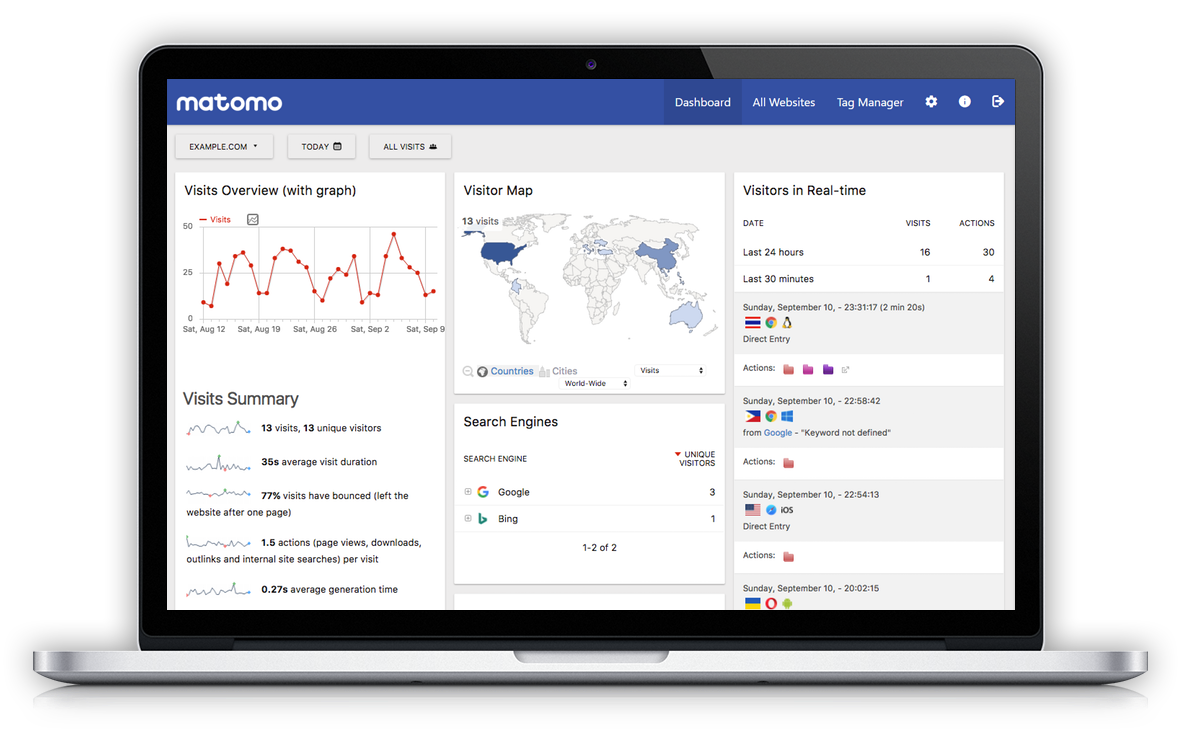
Matomo Open-Source: A Comprehensive Review
Introduction
Matomo (formerly Piwik) is one of the most mature and widely adopted open-source web analytics platforms available today. It offers organizations complete ownership of their analytics data while providing many of the features commonly associated with commercial analytics platforms. Unlike cloud-first analytics services that rely on third-party data collection, Matomo allows users to self-host their analytics infrastructure, making it particularly attractive for organizations with strict privacy, compliance, or data sovereignty requirements.
Originally released in 2007 under the name Piwik, Matomo has grown into a full-featured analytics ecosystem used by governments, universities, healthcare organizations, enterprises, and privacy-conscious businesses worldwide.
Overview
Matomo is designed to answer fundamental questions about website and application usage:
- Who visits your website?
- Where do visitors come from?
- Which pages perform best?
- What marketing campaigns generate conversions?
- How users navigate through your site
- Which goals and ecommerce events drive business value
Unlike many commercial alternatives, Matomo stores all collected data under the organization's control rather than on third-party servers.
Core Features
1. Website Analytics
Matomo provides comprehensive traffic analysis including:
- Page views
- Unique visitors
- Sessions
- Bounce rate
- Average session duration
- Returning visitors
- Geographic reports
- Device reports
- Browser reports
- Operating system statistics
- Screen resolution
- Language detection
Reports are updated in near real time, allowing organizations to monitor traffic as it happens.
2. Visitor Profiles
One of Matomo's strongest capabilities is the Visitor Log.
For every visitor, Matomo can display:
- Complete browsing history
- Pages viewed
- Session timeline
- Entry and exit pages
- Campaign attribution
- Custom dimensions
- Goals completed
- Ecommerce purchases
This creates a detailed understanding of user journeys without relying on third-party analytics providers.
3. Goals and Conversion Tracking
Organizations can define custom goals such as:
- Newsletter signups
- Downloads
- Contact form submissions
- Product purchases
- Video views
- Time spent on site
Each goal includes:
- Conversion rate
- Revenue
- Attribution
- Funnel analysis
4. Ecommerce Analytics
Matomo includes advanced ecommerce reporting:
- Product performance
- Revenue
- Orders
- Average order value
- Shopping cart abandonment
- Product categories
- Coupons
- Refunds
- Customer lifetime metrics
Suitable for both small online stores and enterprise ecommerce platforms.
5. Campaign Tracking
Supports tracking from:
- Email campaigns
- Social media
- Paid advertising
- Affiliate campaigns
- Custom UTM parameters
Campaign performance includes:
- Traffic
- Conversions
- Revenue
- ROI metrics
6. Event Tracking
Track virtually any user interaction:
- Button clicks
- Video plays
- Downloads
- Scroll depth
- Form interactions
- External links
- Internal search
- AJAX events
Developers can implement custom events using JavaScript APIs.
7. Heatmaps and Session Recording
Premium versions provide:
- Click heatmaps
- Mouse movement
- Scroll heatmaps
- Session replay
Useful for UX optimization and conversion analysis.
8. Tag Manager
Matomo includes its own Tag Manager.
Features include:
- Trigger rules
- Variables
- Tags
- Custom HTML
- JavaScript execution
- Event triggers
This reduces dependency on Google Tag Manager.
9. Dashboard Customization
Users can build personalized dashboards containing:
- Graphs
- Tables
- Maps
- Pie charts
- Visitor trends
- Live visitor widgets
Multiple dashboards can be created for different teams.
10. API Support
Matomo offers an extensive HTTP API allowing:
- Automated reporting
- Dashboard integration
- Data export
- Custom analytics
- Third-party software integration
Supported output formats include:
- JSON
- XML
- CSV
- PHP serialization
Privacy and Compliance
Privacy is Matomo's defining strength.
Features include:
- GDPR support
- CCPA support
- Cookie-less tracking
- IP anonymization
- User consent management
- Data retention controls
- First-party cookies
- Data ownership
- Do Not Track support
Organizations maintain full control over visitor information.
Open-Source Architecture
Matomo is released under the GNU General Public License (GPL).
The platform consists of:
- PHP backend
- MySQL/MariaDB database
- JavaScript tracking library
- Plugin architecture
- REST API
- Command-line tools
Because the source code is publicly available, organizations can:
- Audit security
- Customize functionality
- Develop plugins
- Modify reports
- Integrate internal systems
Plugin Ecosystem
Matomo supports dozens of plugins including:
Free plugins:
- Custom dimensions
- Device detection
- Search engine keywords
- Scheduled reports
- Custom reports
Premium plugins:
- Funnels
- Form analytics
- Media analytics
- Heatmaps
- Session recording
- Roll-up reporting
- Multi-channel attribution
Performance
Matomo performs well for small to medium websites.
Small websites
Excellent performance with:
- Few hundred daily visitors
- Shared hosting
- Single server
Medium websites
Handles:
- Millions of monthly pageviews
- VPS deployments
- Dedicated servers
Enterprise
Large deployments may require:
- Load balancing
- Database replication
- Redis
- Archiving optimization
- Scheduled processing
- Horizontal scaling
Performance depends heavily on infrastructure tuning.
Installation
Installation is relatively straightforward.
Requirements:
- PHP
- MySQL or MariaDB
- Apache or Nginx
- Composer (optional)
Deployment options:
- Docker
- Kubernetes
- Shared hosting
- VPS
- Dedicated server
- Cloud VM
Most installations can be completed in under an hour.
User Interface
Matomo features a modern web interface with:
- Responsive design
- Interactive charts
- Real-time dashboards
- Report filtering
- Custom widgets
Although not as visually polished as some commercial analytics platforms, the interface is intuitive and functional.
Advantages
Complete Data Ownership
Organizations retain full control over analytics data, avoiding vendor lock-in and enabling compliance with internal governance policies.
Privacy-Focused
Matomo is designed with privacy in mind and offers tools for operating with minimal personal data collection while still delivering meaningful analytics.
No Vendor Lock-In
Data remains portable and under the organization's control.
Open Source
Developers can inspect, modify, and extend the source code.
Rich Reporting
Includes virtually every report expected from a modern analytics platform.
Flexible Deployment
Supports:
- On-premises
- Private cloud
- Public cloud
- Hybrid environments
Strong API
Makes integration straightforward.
Active Community
Matomo benefits from an active open-source community contributing plugins, documentation, bug fixes, and discussions.
Limitations
Resource Usage
Self-hosted analytics requires:
- Database maintenance
- Backups
- Monitoring
- Server administration
Organizations without infrastructure expertise may find hosted analytics simpler.
Premium Features
Some advanced capabilities (such as Funnels, Heatmaps, Session Recording, and Form Analytics) require paid plugins, so the fully featured experience may involve additional licensing costs.
Learning Curve
Advanced configuration can take time, particularly for custom tracking, ecommerce implementations, and large-scale deployments.
Scalability Planning
Very high-traffic websites require careful capacity planning and optimization to maintain performance.
Comparison with Google Analytics
| Feature | Matomo | Google Analytics 4 |
| Open source | ✔ | ✘ |
| Self-hosting | ✔ | ✘ |
| Data ownership | ✔ | Limited |
| Privacy controls | Excellent | Good |
| Cookie-less tracking | ✔ | Limited |
| Custom plugins | ✔ | Limited |
| Raw data access | ✔ | Limited |
| Vendor lock-in | None | High |
| Enterprise maintenance | User-managed | Google-managed |
Google Analytics 4 offers a highly scalable managed service with deep integration into Google's ecosystem and advanced machine learning capabilities. Matomo, in contrast, emphasizes transparency, data ownership, and deployment flexibility, making it a compelling choice for organizations that prioritize privacy and control.
Ideal Use Cases
Matomo is particularly well suited for:
- Government agencies
- Universities
- Healthcare organizations
- Financial institutions
- Privacy-focused businesses
- Nonprofits
- SaaS companies
- Enterprise websites
- Ecommerce businesses
- Organizations subject to strict regulatory requirements
Community and Documentation
Matomo provides:
- Comprehensive documentation
- Developer guides
- API references
- Community forums
- GitHub repository
- Extensive plugin documentation
The documentation is generally thorough and suitable for both beginners and experienced developers.
Final Verdict
Matomo stands out as one of the strongest open-source analytics platforms available today. Its combination of comprehensive analytics, privacy-focused design, extensibility, and self-hosting capabilities makes it an excellent alternative to proprietary analytics solutions for organizations that value control over their data.
Its greatest strengths are data ownership, regulatory compliance support, a mature plugin architecture, and a broad feature set that covers most common web analytics needs. However, self-hosting introduces operational responsibilities, and some advanced capabilities are available only through commercial plugins.
Overall Rating: 4.6/5
| Category | Rating |
| Features | ★★★★★ (5.0/5) |
| Ease of Use | ★★★★☆ (4.2/5) |
| Performance | ★★★★☆ (4.4/5) |
| Privacy | ★★★★★ (5.0/5) |
| Customization | ★★★★★ (5.0/5) |
| Documentation | ★★★★☆ (4.7/5) |
| Community | ★★★★☆ (4.5/5) |
| Value | ★★★★★ (4.8/5) |
For organizations seeking a robust, privacy-centric, and open-source analytics solution, Matomo remains one of the best choices in its category.